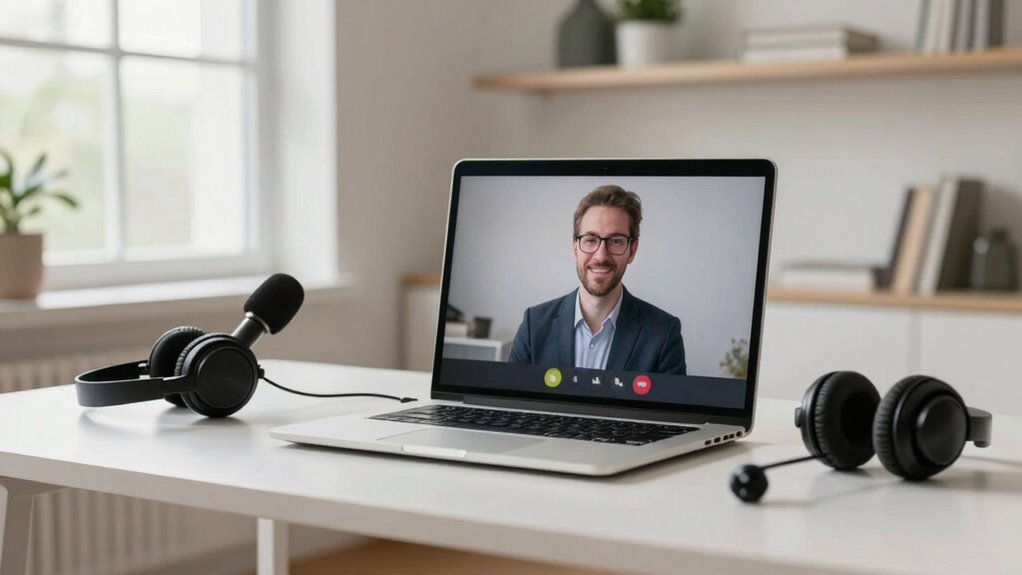

To improve your remote sessions, focus on fixing your camera setup by ensuring proper lighting, a clean background, and camera positioning. Use natural light or adjustable artificial lights to brighten your face and avoid harsh backlighting. Keep clutter out of your environment for a professional look. Position your camera at eye level for better engagement. Paying attention to these details can substantially boost your video quality—stay tuned for more tips to perfect your setup.
Key Takeaways
- Ensure the camera is positioned at eye level for a more natural and engaging perspective.
- Clean the camera lens regularly to prevent blurriness and improve image clarity.
- Adjust lighting to evenly illuminate your face, avoiding shadows and backlighting issues.
- Use a tidy, uncluttered background to minimize distractions and enhance professionalism.
- Check camera settings for proper focus, resolution, and frame composition before starting the session.
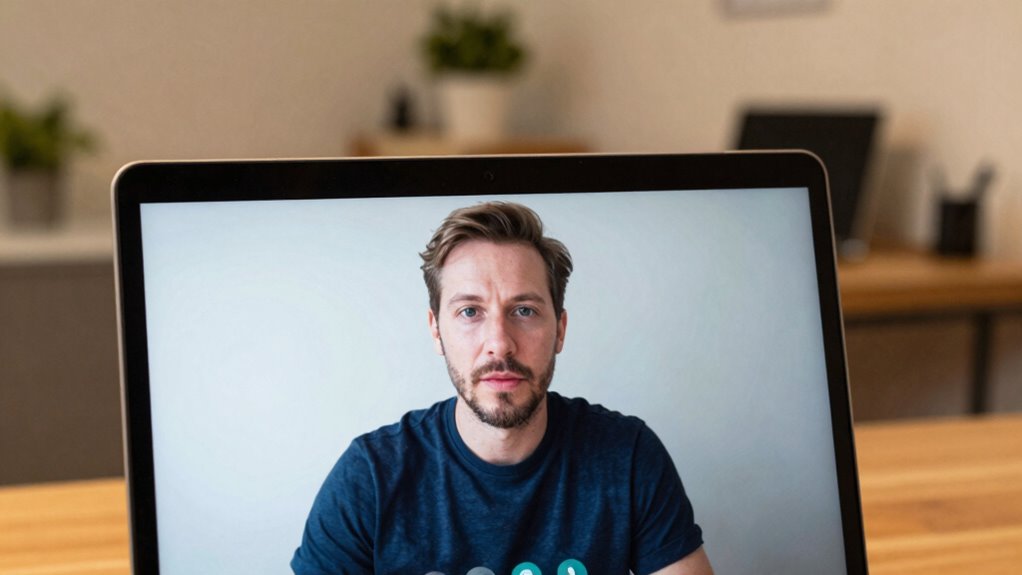
If your remote video sessions look dull or unprofessional, the culprit might be a simple camera issue that’s easy to fix. Often, the problem isn’t your internet connection or your camera quality but rather how you set up your environment and position yourself on camera. Two common issues that can make your video look less polished are poor lighting adjustments and background clutter. Addressing these can instantly improve your appearance and the overall impression you give during meetings.
Start by focusing on your lighting. Good lighting is essential for a clear, vibrant video. Natural light is usually the best option, so try to sit near a window during the day. However, if natural light isn’t available or insufficient, invest in a simple ring light or desk lamp with adjustable brightness. Position the light source in front of you, slightly above eye level, to avoid shadows and ensure your face is evenly lit. Avoid harsh backlighting, which can cause you to appear as a silhouette, and steer clear of overly dim settings that make you look unprofessional. Proper lighting adjustments not only improve visibility but also make your skin tone look more natural and reduce the need for post-production filters. Additionally, consider lighting setup techniques to maximize your video quality and create a more professional appearance.
Good lighting, natural or artificial, enhances your appearance and ensures a professional, vibrant video.
Next, look at what’s behind you. Background clutter can distract your viewers and diminish your professionalism. Clear your space so that only neat, intentional elements are visible. A tidy background creates a more polished look and keeps the focus on you. If you want to elevate your appearance further, consider using a virtual background or a plain, neutral backdrop. Just make sure it’s free of distractions like cluttered shelves, personal items, or messy desks. This not only makes your video more visually appealing but also conveys that you’re organized and prepared, which can boost your credibility. Paying attention to your camera setup can further enhance the overall quality of your video presentation. Ensuring your environment is optimized is part of creating a professional online image, which is increasingly important in remote communication.
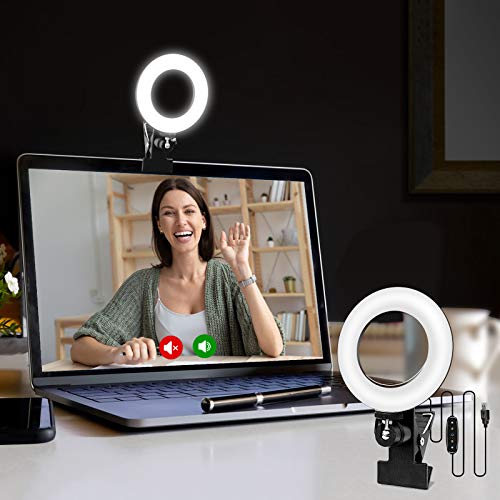
Cyezcor Video Conference Lighting Kit, Ring Light for Monitor Clip On
- Adjustable Color Temperature: 3200K-6800K with 3 modes
- Brightness Levels: 5 adjustable brightness levels
- High-Quality LED Beads: 48 LEDs with 10W brightness
As an affiliate, we earn on qualifying purchases.
As an affiliate, we earn on qualifying purchases.
Frequently Asked Questions
Which Camera Brands Are Most Compatible With Remote Session Setups?
You’ll find that brands like Logitech, Canon, and Sony are highly compatible with remote session setups. They offer excellent camera accessories and strong software compatibility, making it easy to connect and optimize your video quality. Logitech webcams are plug-and-play, while Canon and Sony provide high-quality options with robust integration. Make sure you check the specific model’s compatibility with your software to guarantee smooth streaming and clear visuals during your remote sessions.
How Often Should I Update My Camera Drivers for Optimal Performance?
Did you know that outdated drivers can reduce your camera’s performance by up to 30%? To keep your remote sessions sharp, you should update your camera drivers at least once every three months. Regular camera maintenance, including timely driver updates, ensures smooth video quality and prevents glitches. Set reminders to check for updates frequently, especially after OS upgrades, so your camera stays dependable and delivers the best possible image.
Can Lighting Improvements Alone Fix Poor Camera Quality?
Lighting improvements can markedly enhance your camera quality, but they might not fix all issues alone. Good lighting effects reduce shadows and glare, making your image clearer. Proper camera placement also plays an essential role in capturing better visuals. Combine both lighting and strategic positioning to improve your video quality effectively. This approach helps guarantee your remote sessions look professional, sharp, and engaging without relying solely on technical camera fixes.
What Is the Best Resolution for Remote Video Conferencing?
The best resolution for remote video conferencing is typically 1080p, as it balances clarity and bandwidth. Your camera sensor plays a vital role in capturing sharp images, while effective video compression guarantees smooth streaming without lag. Keep in mind, higher resolutions demand better camera sensors and stronger internet connections. By optimizing these factors, you’ll enjoy clearer, more professional-looking video calls that make a strong impression.
How Do I Troubleshoot Audio-Visual Synchronization Issues?
To troubleshoot audio-visual synchronization issues, start by checking your internet connection to reduce latency. Next, adjust your audio and video settings for ideal sync, and disable any background apps that might cause audio delay or visual lag. Restart your device and update your conferencing software. Finally, test the connection with a quick call to ensure audio matches visual timing, making your remote sessions seamless and professional.

Weilisi 10.2" Desk Ring Light with Stand, 360° Rotate Desk Lamps for Home Office with C-Clamp, Flexible Height Desk Light, Adjust Arm Ring Light for Desk, Podcast, Gaming, Recording, Zoom Lighting
- Uniform Diffused Lighting: Provides soft, shadow-free illumination
- Adjustable Height: Extendable telescoping stand up to 11.42 inches
- 360° Rotatable Light: Flexible angle adjustment for optimal lighting
As an affiliate, we earn on qualifying purchases.
As an affiliate, we earn on qualifying purchases.
Conclusion
Fixing this camera problem can make your remote sessions look much more professional. When your video quality improves, you’ll notice a boost in engagement and clarity. Did you know that 93% of communication is visual? That’s why ensuring your camera works perfectly is essential. By resolving this issue, you’ll not only appear more confident, but you’ll also make it easier for your audience to connect with you. Don’t wait—enhance your remote presence today!

YYNXSY 7X5FT Office Backdrop with Window Background for Video Conference Photography Studio Backdrop Screen Vinyl Material for Holiday Party Birthday Party Room Decoration YY-1003
- Size: 7×5 feet professional backdrop
- High-Resolution Printing: Realistic, detailed images
- Lightweight & Easy to Install: Vinyl material for quick setup
As an affiliate, we earn on qualifying purchases.
As an affiliate, we earn on qualifying purchases.
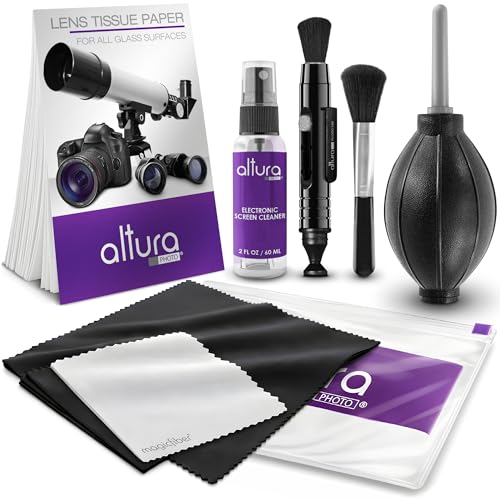
Altura Photo Camera Lens Cleaning Kit, Lens Cleaner for DSLR & Mirrorless
- Complete Camera Cleaning Kit: Includes all essential cleaning tools
- Alcohol & Ammonia-Free Solution: Safe for delicate lens coatings
- Gentle, Streak-Free Cleaning: Leaves no scratches or streaks
As an affiliate, we earn on qualifying purchases.
As an affiliate, we earn on qualifying purchases.