To back up your voice sessions without losing files, create organized folders for your recordings and use consistent naming conventions. Choose a reputable cloud storage service like Google Drive, Dropbox, or OneDrive and enable automatic sync to upload files easily. Regularly review your backups and keep local copies on external drives for extra security. Using these steps helps protect your recordings from hardware failures or accidental deletion—keep going to discover more helpful tips.
Key Takeaways
- Use reputable cloud storage services like Google Drive or Dropbox with automatic sync features.
- Organize voice files into dedicated folders with consistent naming conventions for easy retrieval.
- Enable two-factor authentication to secure backups from unauthorized access.
- Set a routine to upload and verify new recordings regularly, ensuring no files are missed.
- Keep offline backups on external drives or local servers for additional data protection.
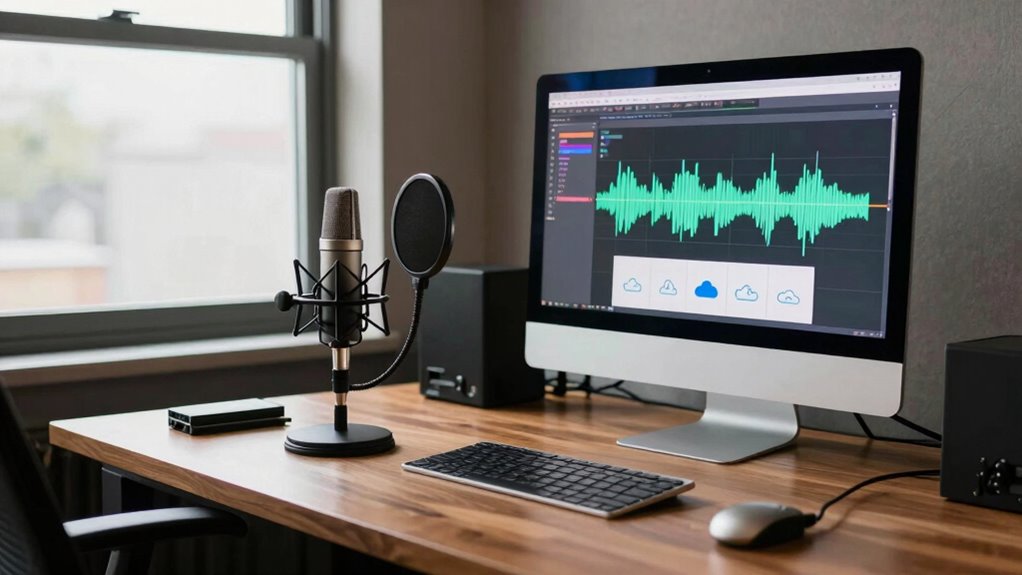
Backing up your voice sessions is essential to prevent data loss, especially if you rely on recordings for professional or personal projects. You want a backup method that’s reliable, easy to access, and secure. Cloud storage is your best option because it offers a safe, off-site location for your files, protecting them from hardware failures, theft, or accidental deletion. When you use cloud storage, you can access your voice recordings from any device connected to the internet, ensuring your work remains safe and accessible no matter where you are.
Using cloud storage keeps your voice recordings safe, accessible, and protected from hardware failures or accidental loss.
To get started, organize your files properly before uploading them. Good file organization is crucial for quick retrieval and efficient management. Create a dedicated folder for your voice sessions, and within that, categorize recordings by date, project, or session type. Consistent naming conventions help you identify files easily, saving time when you need to locate a specific recording. For example, use date formats like YYYY-MM-DD followed by a descriptive title. This simple step streamlines your workflow and minimizes confusion later on.
Next, choose a reputable cloud storage service that fits your needs. Popular options like Google Drive, Dropbox, or OneDrive offer generous free storage tiers and paid plans for larger capacities. These platforms support automatic synchronization, meaning your voice sessions will upload automatically whenever you save or add new recordings, reducing the risk of forgetting to back up manually. Make sure to enable two-factor authentication for added security, especially if your recordings contain sensitive information.
It’s also wise to establish a regular backup routine. Set a specific time—maybe at the end of each recording session—to upload new files. Automating this process with sync features can save time and effort. Additionally, consider keeping offline backups on an external hard drive or local server for extra security. This layered approach guards against potential cloud service outages or data breaches.
Finally, review your backups periodically. Check that your files are properly uploaded and accessible. Confirm that your file organization remains intact and that naming conventions are consistent. By maintaining a regular review process, you ensure your backups stay current and reliable. With cloud storage, organized files, and a consistent routine, you secure your voice sessions effectively, avoiding the frustration and setbacks that come with lost or corrupted recordings.

WD 12TB My Book Desktop External Hard Drive, USB 3.0, External HDD with Password Protection and Auto Backup Software – WDBBGB0120HBK-NESN
- Capacity: Up to 18TB storage
- Software Included: Device management and backup software
- Security: 256-bit AES hardware encryption
As an affiliate, we earn on qualifying purchases.
As an affiliate, we earn on qualifying purchases.
Frequently Asked Questions
What Is the Fastest Method to Back up Large Voice Files?
To quickly back up large voice files, use audio compression to reduce file size before transferring. Compress files with formats like MP3 or ZIP for faster upload times. Make sure you enable backup encryption to keep your recordings secure during transit and storage. This approach speeds up the process while maintaining security, allowing you to efficiently back up your voice sessions without risking data loss or exposing sensitive content.
Can I Automatically Back up Voice Sessions to Cloud Storage?
Think of cloud storage as a safety net for your voice sessions. Yes, you can set up automatic backup to cloud storage, ensuring your recordings are saved without manual effort. Many platforms offer seamless integration with voice recording apps, so your files are uploaded instantly after recording. By enabling automatic backup, you protect your work from accidental loss and keep your recordings accessible from anywhere, at any time.
How Do I Recover Lost Voice Recordings From Backups?
To recover lost voice recordings from backups, first check your cloud storage or local backup. Use backup scheduling to locate the most recent, intact version. Make sure your backups are encrypted for security, then restore the files from the backup. If encryption complicates recovery, decrypt the files carefully. Regularly scheduled backups ensure you always have the latest recordings, minimizing data loss if issues arise.
Are There Specific Backup Tools for High-Quality Audio Files?
Think of backup tools for high-quality audio like a vault protecting treasures. You should choose tools that support audio compression to keep files manageable without losing quality. Look for those offering storage encryption to safeguard your recordings from unauthorized access. Reliable options like Acronis or Backblaze provide these features, ensuring your recordings stay intact, secure, and easily accessible when you need them most.
How Often Should I Back up My Voice Recordings?
You should back up your voice recordings regularly, ideally after each recording session, to prevent data loss. Implement file encryption to secure sensitive content and use storage redundancy by backing up files to multiple locations, such as cloud storage and physical drives. This way, even if one backup fails, your recordings remain safe. Consistent backups guarantee your valuable sessions stay protected and accessible whenever you need them.
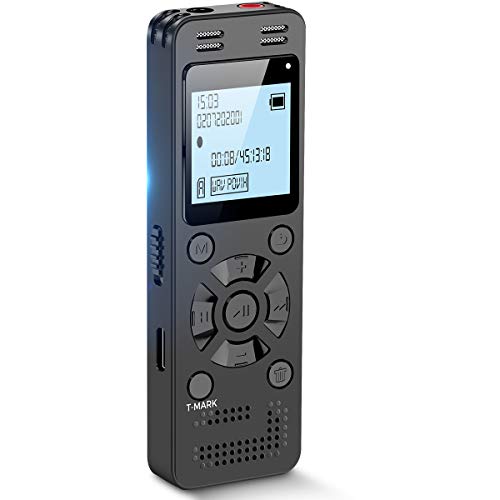
128GB Digital Voice Recorder for Lectures Meetings – EVIDA 9296 Hours Voice Activated Recording Device Audio Recorder with Playback,Password
- High-Quality PCM Recording: 1536Kbps sound with noise cancellation
- Large 128GB Storage Capacity: Stores up to 9296 hours of recordings
- Long Battery Life: Up to 54 hours continuous recording
As an affiliate, we earn on qualifying purchases.
As an affiliate, we earn on qualifying purchases.
Conclusion
By now, you realize that backing up your voice sessions isn’t just a good idea—it’s your safety net against disaster. Using reliable cloud storage and regular backups guarantees your precious recordings are never lost in the chaotic abyss of technical failure. Think of it as your digital fortress, protecting irreplaceable memories and creative work. With these strategies, you’ll safeguard your files like a vault guarding the crown jewels—impervious and eternally secure.

AMBER X Smart Personal Cloud Storage Device Data and Media Files, Built-in 512GB High-Speed SSD with USB Storage, Plex and Home Assistant/iOS/Android/Windows/Mac Compatible
- Easy Home Cloud Setup: Set up and use easily at home
- Complete Data Control: Own and control your data without memberships
- Remote Access & Sharing: Access and share files from anywhere
As an affiliate, we earn on qualifying purchases.
As an affiliate, we earn on qualifying purchases.
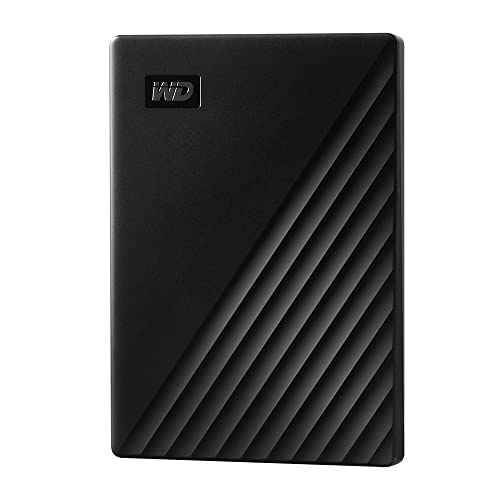
WD 2TB My Passport, Portable External Hard Drive, Black, backup software with defense against ransomware, and password protection, USB 3.1/USB 3.0 compatible – WDBYVG0020BBK-WESN
- Design: Slim, durable portable hard drive
- Capacity: Up to 6TB storage capacity
- Backup Software: Includes device management and ransomware protection
As an affiliate, we earn on qualifying purchases.
As an affiliate, we earn on qualifying purchases.