The best assistive technology devices match a specific access need, whether that means controlling a computer hands-free, communicating with recorded messages, or reading printed text aloud. I name the GlassOuse V1.4 my best overall pick for hands-free computer access, while the AbleNet Big Red stands out for a large, simple switch and the OrCam Read for independent reading. These devices serve very different tasks, so a useful choice depends on the user’s abilities, environment, setup needs, and compatibility—not on features alone. The tradeoff is often between a focused, easy-to-use tool and a more flexible device that may take longer to configure. Read on for the full breakdown and guidance on choosing the right kind of support.

Get everyday helpers delivered free with Prime
- Fast, free delivery on millions of items
- Prime Video, Amazon Music and more included
- Member-only deals all year
Key Takeaways
- The best overall choice depends on the task: GlassOuse V1.4 leads this roundup for hands-free computer control, but it is not a substitute for an AAC device, reading aid, or mobility support.
- Switch size and activation method matter more than color: AbleNet Big Red offers a broad activation surface, while the Jelly Bean is a smaller option for setups where reach and placement call for a more compact switch.
- Communication devices serve different settings: The Joyreal’s programmable buttons suit users who need a larger set of messages, while the four-pack of recording buttons favors simple, separate messages placed around a home or care space.
- Reading pens are not interchangeable with a dedicated reader: Scanmarker and translation pens combine text capture with functions such as translation or note-taking, while OrCam Read focuses on reading access and may better suit users who do not want a pen-style workflow.
- Low-tech adaptations can solve narrow, practical problems: The writing aids, conductive stylus, and Vive car handle target grip, touchscreen access, and vehicle transfers—needs that broader communication or reading devices do not address.
| GlassOuse V1.4 Wearable Bluetooth Hands-Free Mouse |  | Best for Head-Controlled Cursor Access | Connectivity: Bluetooth 4.0, wireless | Movement detection: Optical motion sensor | Button quantity: 3 | VIEW LATEST PRICE | See Our Full Breakdown |
| AbleNet Jelly Bean Assistive Switch |  | Best for a Smaller Switch Target | Activation surface: 2.5 in (6.4 cm) | Dimensions: 5.5 × 8.5 × 2.3 in | Weight: 6.6 oz | VIEW LATEST PRICE | See Our Full Breakdown |
| AbleNet Big Buddy Button Red Adaptive Switch |  | Best for a Large, Tactile Switch Target | Actuator diameter: 5 inches | Connector: 3.5 mm plug | Feedback: Auditory and tactile | VIEW LATEST PRICE | See Our Full Breakdown |
| 4-Pack Portable AAC Communication Devices with Voice Recording Buttons |  | Best for Simple Recorded Messages in Multiple Locations | Quantity: 4 buttons | Maximum recording time: 30 seconds per button | Power: 2 AAA batteries per button | VIEW LATEST PRICE | See Our Full Breakdown |
| Scan Translator Pen with Text-to-Speech, Note-Taking, and Recording |  | Best for Readers Who Need Translation and Audio Support | Online languages: 142 | Offline languages: 10 | Dimensions: 5.5 × 1.5 × 0.4 inches | VIEW LATEST PRICE | See Our Full Breakdown |
| Talking Products Recordable Sound Buttons, 6-Color Pack, 80-Second Recording |  | Best for Customizable Communication | Pack size: 6 buttons | Colors: Red, yellow, green, blue, black, and white | Recording time: Up to 80 seconds per button | VIEW LATEST PRICE | See Our Full Breakdown |
| Multilingual Translation and Reading Pen with Text-to-Speech |  | Best for Multilingual Text Access | Model: S65pro | Dimensions: 5.13 × 2.48 × 0.47 inches | Weight: 2.56 ounces | VIEW LATEST PRICE | See Our Full Breakdown |
| Ergonomic Assistive Writing and Drawing Device for Adults with Arthritis, Black |  | Best for Hand-Mobility Support | Color: Black | Weight: 2.7 ounces | Material: ABS | VIEW LATEST PRICE | See Our Full Breakdown |
| OrCam Read AI Assistive Reader with Smart Reading |  | Best for Offline Reading Access | Display technology: Electronic ink | Connectivity: Bluetooth | Screen size: 6 inches | VIEW LATEST PRICE | See Our Full Breakdown |
| Vive Car Handle Assist for Elderly, Scratch-Resistant Vehicle Grab Bar |  | Best for Vehicle Transfers | Material: Composite | Maximum supported weight: 300 pounds | Grip: Ergonomic, cushioned, nonslip overlay | VIEW LATEST PRICE | See Our Full Breakdown |
| EXTYLUS Finger-Mounted Conductive Stylus for Touchscreens |  | Best for Touchscreen Use Without a Firm Grip | Brand: Miyuki Glove Co., Ltd | Model: AIX-TSS-001 | Material: Carbon fiber | VIEW LATEST PRICE | See Our Full Breakdown |
| AbleNet Big Red Assistive Switch, 5-Inch Activation Surface |  | Best for a Large, Clear Switch Target | Brand: AbleNet | Model: 10033500 | Activation surface: 5 inches | VIEW LATEST PRICE | See Our Full Breakdown |
| Joyreal AAC Communication Device with 37 Talking Buttons and 8 Programmable Buttons | 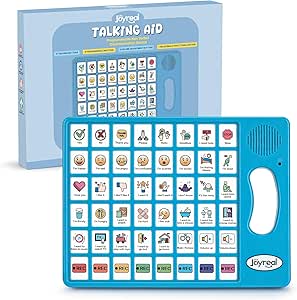 | Best for Picture-Based Everyday Communication | Pre-installed talking buttons: 37 | Programmable buttons: 8 | Voice options: Male and female | VIEW LATEST PRICE | See Our Full Breakdown |
| Scanmarker Pro Reading and Translation Pen |  | Best for Reading Printed Text Independently | Brand: Scanmarker | Model: Scanmarker Pro | Scanner type: Text | VIEW LATEST PRICE | See Our Full Breakdown |
| Pubuniuo Assistive Writing and Drawing Device, Black |  | Best for Supporting a Pen Hold | Material: Plastic | Dimensions: 13.3 x 6 x 5 cm | Weight: Approximately 80 g | VIEW LATEST PRICE | See Our Full Breakdown |
| assistive technology device | Weight |
|---|---|
| GlassOuse V1.4 Wearable Blueto | 0.21 kg |
| AbleNet Jelly Bean Assistive S | 6.6 oz |
| AbleNet Big Buddy Button Red A | 2.4 ounces |
| 4-Pack Portable AAC Communicat | — |
| Scan Translator Pen with Text- | 2.47 ounces |
| Talking Products Recordable So | 600 g |
| Multilingual Translation and R | 2.56 ounces |
| Ergonomic Assistive Writing an | 2.7 ounces |
| OrCam Read AI Assistive Reader | — |
| Vive Car Handle Assist for Eld | — |
| EXTYLUS Finger-Mounted Conduct | 3 g |
| AbleNet Big Red Assistive Swit | 5.6 ounces |
| Joyreal AAC Communication Devi | — |
| Scanmarker Pro Reading and Tra | 0.23 kg |
| Pubuniuo Assistive Writing and | Approximately 80 g |
More Details on Our Top Picks
GlassOuse V1.4 Wearable Bluetooth Hands-Free Mouse
The GlassOuse V1.4 is the most specialized option here: it turns slight head movement into cursor control, which can let someone use a compatible computer, tablet, phone, or smart TV without holding a mouse. Its Bluetooth connection and support for dwell-click software or an external switch make it more adaptable than a single-purpose button such as the AbleNet Big Buddy Button. The tradeoff is that cursor movement and clicking are separate tasks: users need suitable dwell software or a compatible switch to select items. It also depends on head movement being comfortable and sufficiently controlled, so it will not fit every user’s access needs. The updated sensitivity and longer battery life address practical use, but this wearable mouse is a more involved setup than the recording buttons in this roundup.
Pros:- Moves the cursor in response to slight head movements, reducing reliance on hand control.
- Works wirelessly with compatible phones, computers, tablets, and smart TVs.
- Supports dwell-click software, G-Series switches, or compatible switches with a 3.5 mm plug.
- Updated version includes improved sensitivity and longer battery life.
Cons:- Clicking requires dwell-click software or a compatible external switch.
- Head movement must be comfortable and controlled enough for cursor navigation.
- Bluetooth compatibility and setup requirements may limit use with some devices.
Best for: People who can make small, controlled head movements and need hands-free cursor access across compatible devices.
Not ideal for: People who cannot comfortably move their head or want a complete clicking solution without setting up dwell software or an external switch.
- Connectivity:Bluetooth 4.0, wireless
- Movement detection:Optical motion sensor
- Button quantity:3
- Hand orientation:Ambidextrous
- Compatible devices:Smartphones, computers, tablets, smart TVs
- Wireless range:10 meters
- Weight:0.21 kg
- Power source:Battery
- Warranty:120 days
Our verdict“Choose the GlassOuse V1.4 if head movement is a workable way to control a cursor and you can provide a separate clicking method.”
AbleNet Jelly Bean Assistive Switch
The AbleNet Jelly Bean suits users who can reliably reach a smaller target and need a switch that can be visually customized. Its 2.5-inch activation surface is easier to locate than a small control, while the interchangeable colors and clear symbol cap can help caregivers match the switch to a user’s visual cues or routine. Compared with the AbleNet Big Buddy Button, it takes up less space but offers a substantially smaller activation area, so it is not the better choice when broad, forgiving access matters most. The Jelly Bean connects to compatible assistive technology, but the product information does not specify a connector or mounting system. Buyers should check that their device and positioning setup support it before choosing this switch.
Pros:- 2.5-inch activation surface provides a defined target for switch access.
- Interchangeable red, blue, yellow, and green tops allow visual customization.
- Clear snap cap can hold a symbol to support personalized cues.
- Connects with compatible assistive technology.
Cons:- The activation surface is smaller than the 5-inch AbleNet Big Buddy Button.
- Mounting options and compatibility may depend on the user’s assistive technology setup.
Best for: Users who can target a 2.5-inch surface and benefit from color coding or a symbol placed beneath the clear cap.
Not ideal for: Users who need a very large activation area or buyers whose device setup requires a connector or mounting method that has not been confirmed.
- Activation surface:2.5 in (6.4 cm)
- Dimensions:5.5 × 8.5 × 2.3 in
- Weight:6.6 oz
- Interchangeable top colors:Red, blue, yellow, green
- Included accessory:Clear snap cap for symbols
- Model number:59776
Our verdict“Pick the Jelly Bean when a smaller, color-coded switch target fits the user’s reach and device setup.”
AbleNet Big Buddy Button Red Adaptive Switch
The AbleNet Big Buddy Button prioritizes an easy-to-find target: its 5-inch surface is twice the diameter of the AbleNet Jelly Bean’s 2.5-inch activation area. That makes it a better fit for users who benefit from a broad button and clear feedback, while the Jelly Bean is the more compact choice for someone able to reach a smaller area. The Big Buddy’s auditory and tactile feedback confirms activation, and its 3.5 mm plug supports compatible AAC devices, computers, environmental controls, and adaptive toys. That connector is also a limit: devices without a matching input may need a suitable interface. Its plastic construction keeps the design simple, but buyers seeking a metal-bodied switch should look elsewhere.
Pros:- Large 5-inch actuator offers a broad target for switch activation.
- Auditory and tactile feedback helps confirm that a press registered.
- 3.5 mm plug supports a range of compatible AAC and adaptive devices.
- Two built-in threaded inserts allow flexible mounting.
Cons:- Compatibility depends on the connected device having a suitable 3.5 mm input.
- Plastic construction may not suit buyers seeking a metal switch.
- Its large actuator takes more space than the AbleNet Jelly Bean.
Best for: People with limited dexterity or visual impairments who need a large push-button surface and can connect to a compatible 3.5 mm input.
Not ideal for: Users who need a compact switch, or those whose AAC or control device lacks a compatible 3.5 mm input.
- Actuator diameter:5 inches
- Connector:3.5 mm plug
- Feedback:Auditory and tactile
- Mounting:Two built-in threaded inserts
- Contact type:Normally open
- Operating voltage:12 V
- Dimensions:8.9 × 5.59 × 1.1 inches
- Weight:2.4 ounces
- Material:Plastic
Our verdict“Choose the Big Buddy Button when a broad, feedback-rich switch is more useful than a smaller footprint.”
4-Pack Portable AAC Communication Devices with Voice Recording Buttons
This four-button recording set offers a straightforward way to make personalized spoken messages available at home, school, therapy, or in the community. Each unit records up to 30 seconds of audio and plays it through its own built-in speaker, so a caregiver can prepare distinct prompts or communication messages for different situations. Unlike the Joyreal AAC Communication Device listed elsewhere in this roundup, this set does not present a large bank of talking buttons or programmable choices; its strength is distributing a few simple recordings across locations. That simplicity also limits flexibility: each button has a short recording cap, and each requires two AAA batteries that are not included. Buyers should plan for battery supply as well as recording updates.
Pros:- Four separate buttons can hold customized recordings for different activities or locations.
- Each button records up to 30 seconds of audio.
- Built-in speakers play back messages without a separate speaker.
- Portable format suits home, school, therapy, and community use.
Cons:- Each recording is limited to 30 seconds.
- Each button requires two AAA batteries, which are not included.
- Offers fewer communication choices than a multi-button AAC device such as the Joyreal model.
Best for: Caregivers and educators who want a few customizable spoken prompts available in separate rooms or activity settings.
Not ideal for: People who need a broad AAC vocabulary, longer recordings, or a setup that avoids separate batteries for each button.
- Quantity:4 buttons
- Maximum recording time:30 seconds per button
- Power:2 AAA batteries per button
- Batteries included:No
- Speaker:Built-in
Our verdict“Choose this set for a handful of short, location-specific recorded messages rather than a full AAC communication system.”
Scan Translator Pen with Text-to-Speech, Note-Taking, and Recording
The Scan Translator Pen combines printed-text scanning with translation and text-to-speech, making it a broader reading aid than a basic message button such as the 4-Pack Portable AAC Communication Devices. Its online support for 142 languages and offline support for 10 can help readers work across different language settings, while photo translation, note-taking, and voice recording add tools for study or reference. Those extras make it less focused than a dedicated switch or communication aid, and the product data specifically says it is not suitable for blind users. Japanese text recognition also works only with horizontal text. Bluetooth connectivity and online features may add setup or connectivity needs, so this is better suited to users who can operate a handheld scanning pen than to someone seeking a fully hands-free reader.
Pros:- Combines printed-text scanning, translation, and text-to-speech playback.
- Supports 142 languages online and 10 offline.
- Photo translation, note-taking, and voice recording extend its use beyond reading.
- Lightweight design weighs 2.47 ounces.
Cons:- Product information says it is not suitable for blind users.
- Japanese text recognition supports horizontal text only.
- Online translation features depend on connectivity.
Best for: Readers with low vision or language-learning needs who can operate a handheld scanner and want translation alongside text-to-speech.
Not ideal for: Blind users, people unable to guide a scanning pen over printed text, or readers who need Japanese recognition for vertical text.
- Online languages:142
- Offline languages:10
- Dimensions:5.5 × 1.5 × 0.4 inches
- Weight:2.47 ounces
- Model:S65pro
- Battery:1 included lithium polymer battery
- Connectivity:Bluetooth
- Japanese text recognition:Horizontal text only
Our verdict“Choose this pen if you can scan printed text by hand and want translation and speech tools in one device.”
Talking Products Recordable Sound Buttons, 6-Color Pack, 80-Second Recording
This six-button set suits users who benefit from simple, repeatable audio cues or spoken choices. Each button stores up to 80 seconds of audio, and its clear removable cover lets a caregiver or teacher pair a recording with a picture, symbol, or word. That makes the buttons more adaptable than the AbleNet Jelly Bean Assistive Switch, which is a single switch rather than a set of recordable message buttons. The 3.5 mm input also allows audio to be recorded from an external device, while the six colors can help organize activities or speakers.
The tradeoff is that each message has a firm time limit, and the buttons need three AAA batteries. This is a good fit for short messages and structured activities, not a replacement for a more extensive communication system.
Pros:- Six buttons allow separate messages or activity cues
- Records up to 80 seconds per button and supports unlimited re-recording
- Removable covers can pair messages with pictures, symbols, or words
- 3.5 mm audio input supports recording from an external device
Cons:- Each recording is limited to 80 seconds
- Requires three AAA batteries
- Six separate buttons may be more equipment than a user needs for one access point
Best for: Teachers, caregivers, and communication partners who need several customizable, short recorded messages for classroom routines or everyday choices
Not ideal for: People who need long-form or frequently changing communication, or users who need a single large switch without recorded-message setup
- Pack size:6 buttons
- Colors:Red, yellow, green, blue, black, and white
- Recording time:Up to 80 seconds per button
- Audio input:3.5 mm
- Microphone:Built-in, mono
- Power:3 AAA batteries required
- Dimensions:0.98 × 3.74 × 0.98 in (D × W × H)
- Weight:600 g
- Warranty:12 months
Our verdict“Choose this set for multiple short, customizable spoken cues; choose a single adaptive switch instead if you only need one activation button.”
Multilingual Translation and Reading Pen with Text-to-Speech
This scanning pen brings translation and read-aloud support into a handheld format. It can translate online in 142 languages and offline in 10, and it reads scanned text aloud while highlighting words on its screen. The camera adds photo translation and text extraction from documents or images, making it more language-focused than the OrCam Read AI Assistive Reader, which emphasizes reading printed and digital text aloud in English. Offline translation is useful when a connection is unavailable, though its language coverage is narrower than the online mode.
This is not a fit for every access need: the product is not suitable for blind users, and Japanese recognition is limited to horizontal text. Buyers should also expect online features to depend on connectivity. Its strongest use case is a sighted reader who wants help understanding foreign-language material, not a standalone screen-reader substitute.
Pros:- Online translation supports 142 languages
- Offline translation supports 10 languages
- Reads scanned text aloud and highlights words on screen
- Camera supports photo translation and text extraction from images
Cons:- Not suitable for blind users
- Japanese text recognition is limited to horizontal text
- Online translation features require an internet connection
Best for: Sighted students, travelers, and multilingual readers who want scanned text translated or read aloud, including some offline use
Not ideal for: Blind users, or readers who need vertical Japanese text recognition or reliable online translation without internet access
- Model:S65pro
- Dimensions:5.13 × 2.48 × 0.47 inches
- Weight:2.56 ounces
- Online translation:142 languages
- Offline translation:10 languages
- Japanese text recognition:Horizontal text only
- Connectivity:Bluetooth
- Battery:1 lithium polymer battery, included
Our verdict“Pick this pen for multilingual reading and translation in a sighted-user workflow, but choose a dedicated reading aid if translation is not your main need.”
Ergonomic Assistive Writing and Drawing Device for Adults with Arthritis, Black
For people whose grip makes a standard pen difficult to control, this mouse-shaped aid offers a different way to guide writing and drawing. Its wide, weighted base is intended to add stability, while the symmetrical shape works in either hand. Unlike the Talking Products Recordable Sound Buttons, which support communication through audio, this device addresses the physical act of making marks on paper. It also needs no setup or extra accessories, so it can be used with ordinary writing or drawing materials.
The tradeoff is its larger footprint: the base takes up more space than a pen grip, and the 3D-printed ABS surface may show layer lines. Since no dimensions or fit adjustments are provided, it may take experimentation to find a comfortable position. It is best viewed as a simple grip alternative, not a powered or highly adjustable writing aid.
Pros:- Symmetrical design supports left- or right-hand use
- Weighted, wide base is designed to improve stability and control
- Requires no setup or additional accessories
- Can support both writing and drawing
Cons:- Large base takes up more space than a standard pen grip
- 3D-printed surface may have visible layer lines
- No fit-adjustment details are provided
Best for: Adults with arthritis or reduced hand mobility who want a simple, ambidextrous aid for everyday writing or drawing
Not ideal for: People who need a compact pen attachment, adjustable hand support, or a device with documented sizing options
- Color:Black
- Weight:2.7 ounces
- Material:ABS
- Manufacturing:3D printed
- Design:Symmetrical, ambidextrous
- Use:Writing and drawing
Our verdict“Choose this if a broad, stable handhold may help with writing or drawing; skip it if compactness or adjustable fit is a priority.”
OrCam Read AI Assistive Reader with Smart Reading
OrCam Read is built for readers who want printed or screen-based text spoken aloud without relying on an internet connection. Its camera captures text from books, newspapers, and digital displays, while smart text selection and full-page capture offer more control than a basic scan-and-read workflow. Audio can play through the built-in speaker or headphones, and operation in low light adds flexibility for different reading settings. Compared with the Multilingual Translation and Reading Pen, OrCam focuses on English reading access rather than broad translation across languages.
That focus comes with access limits. The user must be able to hear the audio, with or without a hearing device, and the device requires full control of hand movements. The product data also warns that it may be difficult for people with moderate to severe visual impairment. Buyers who cannot comfortably aim or operate a handheld camera should look at another access method.
Pros:- Reads printed and digital text aloud
- Works without internet access and in low light
- Offers smart text selection, speed reading, and full-page capture
- Audio supports the built-in speaker or wired and Bluetooth headphones
Cons:- Requires the user to hear spoken output
- Needs full control of hand movements
- May be difficult for users with moderate to severe visual impairment
Best for: English-speaking readers with low vision or reading difficulties who can operate a handheld device and hear spoken output
Not ideal for: People who cannot control hand movements, cannot hear audio output, or need a tool designed for moderate to severe visual impairment
- Display technology:Electronic ink
- Connectivity:Bluetooth
- Screen size:6 inches
- Native resolution:1024 × 768
- File formats:EPUB, MOBI
- Battery:Rechargeable
- Controls:Buttons
- Language:English
Our verdict“Choose OrCam Read for offline English text-to-speech when you can aim and operate the reader; seek another option if those controls are inaccessible.”
Vive Car Handle Assist for Elderly, Scratch-Resistant Vehicle Grab Bar
This portable grab handle addresses a specific mobility task: steadying a person while getting into or out of a vehicle. It slides into a compatible U-shaped door latch and gives the user a cushioned, nonslip grip, rather than relying on the vehicle’s door frame. Compared with the Ergonomic Assistive Writing and Drawing Device, which supports hand control at a desk, the Vive handle is for short transfers and travel. Its composite construction and compact storage make it easy to keep in a glove box or door compartment.
The main limitation is fit. The handle only works with a compatible latch, so buyers should check their vehicle before relying on it. It supports up to 300 pounds, but that capacity does not remove the need to confirm a secure fit and use it as intended. This is a focused aid, not a general-purpose walking support.
Pros:- Supports up to 300 pounds
- Cushioned, nonslip ergonomic grip
- Lightweight and small enough for glove-box or door-compartment storage
- Compatible with many cars, trucks, and SUVs
Cons:- Requires a compatible U-shaped door latch
- Fit must be confirmed for the specific vehicle
- Designed for vehicle entry and exit, not general walking support
Best for: Older adults and people with limited mobility who need a portable handhold for getting into and out of a compatible vehicle
Not ideal for: Drivers or passengers whose vehicle lacks a compatible U-shaped door latch, or anyone seeking a walking aid or continuous support
- Material:Composite
- Maximum supported weight:300 pounds
- Grip:Ergonomic, cushioned, nonslip overlay
- Compatibility:Most compact and midsize cars, trucks, and SUVs
- Storage:Fits in a glove box or door compartment
- Warranty:60-day Vive guarantee
Our verdict“Choose this handle for transfers in a compatible vehicle, but confirm the door latch before depending on it for support.”
EXTYLUS Finger-Mounted Conductive Stylus for Touchscreens
The EXTYLUS is the most targeted pick here for people who can use a touchscreen but have difficulty holding a conventional stylus or pressing with a fingertip. Its adjustable finger belt keeps the conductive tip in position, while the 3 g design adds little weight. That makes it a different kind of access aid from the AbleNet Big Red Assistive Switch, which operates compatible toys or appliances through a large button rather than navigating a screen. The EXTYLUS suits drawing, gaming, and routine phone tasks, but its listed compatibility is limited to smartphones and certain Amazon Fire tablets, so buyers should check their device before choosing it. The replaceable conductive tip is useful for continued use, though replacements are sold separately. It is a focused aid, not a substitute for a switch interface or a broader hands-free control system.
Pros:- Adjustable belt can be worn on any finger
- Lightweight 3 g construction adds little burden
- Allows touchscreen input without gripping a separate stylus
- Conductive tip can be replaced
Cons:- Replacement tips are sold separately
- Compatibility is specified only for smartphones and certain Amazon Fire tablets
Best for: Smartphone or compatible Fire tablet users who have limited grip strength or difficulty applying pressure with a finger
Not ideal for: People who need access to computers, unsupported tablets, or switch-operated appliances, since compatibility is specified for smartphones and certain Amazon Fire tablets
- Brand:Miyuki Glove Co., Ltd
- Model:AIX-TSS-001
- Material:Carbon fiber
- Weight:3 g
- Length:60 mm
- Protruding section:20 mm
- Tip diameter:8 mm
- Compatible devices:Smartphones and compatible Amazon Fire tablets
Our verdict“Choose the EXTYLUS if a compatible touchscreen is part of your daily routine and holding a stylus is difficult.”
AbleNet Big Red Assistive Switch, 5-Inch Activation Surface
The Big Red is the strongest choice in this group for someone who needs a broad, easy-to-find activation area to operate a compatible switch-accessible toy or appliance. Its 5-inch push surface reduces the precision needed compared with a small control, and tactile and audible feedback can help the user recognize an activation. Compared with the AbleNet Jelly Bean Assistive Switch, this model offers a larger target, which may suit users with less controlled movement; the tradeoff is a larger footprint at 6.8 x 7 x 3 inches. Four interchangeable colored tops and a clear symbol holder allow caregivers to customize its appearance and add a visual cue. It is not a standalone communication device or a general-purpose controller: buyers need a compatible switch-operated device, and sales are restricted to the United States.
Pros:- Broad 5-inch activation surface offers a generous target
- Tactile and auditory feedback signals activation
- Interchangeable red, blue, yellow, and green tops
- Snap-on clear symbol holder supports a visual cue
Cons:- Requires a compatible switch-accessible toy or appliance
- Larger dimensions take more space than a smaller switch such as the Jelly Bean
- Cannot be sold outside the United States
Best for: People with limited motor control who need a large, tactile switch for compatible toys or appliances, with caregivers who value visual customization
Not ideal for: Buyers seeking a portable communication device or those outside the United States; it also will not work without compatible switch-accessible equipment
- Brand:AbleNet
- Model:10033500
- Activation surface:5 inches
- Operation mode:Manual
- Switch type:Push button
- Feedback:Tactile and auditory
- Dimensions:6.8 x 7 x 3 inches
- Weight:5.6 ounces
- Compatible devices:Switch-accessible toys or appliances
Our verdict“Pick the Big Red when a user needs a large, feedback-rich switch and already has compatible equipment.”
Joyreal AAC Communication Device with 37 Talking Buttons and 8 Programmable Buttons
Joyreal is the most directly communication-focused option in this batch: its 37 pre-installed picture buttons provide ready-made ways to express common needs, while eight recordable buttons let families add messages that fit an individual routine. Compared with the 4-Pack Portable AAC Communication Devices with Voice Recording Buttons, Joyreal combines built-in picture choices with customization in one device; the advantage is a more structured set of prompts, while the other option may suit buyers who prefer separate, simpler recording buttons. Male and female voice options and adjustable volume give caregivers some control over how messages are delivered. Its tradeoffs are practical: it runs on three AAA batteries, and custom messages must be recorded before they are available. This is a focused communication aid, not a full-featured tablet-based AAC system, so buyers should match its button vocabulary to the user’s communication needs.
Pros:- 37 picture-based buttons offer ready-made everyday communication
- Eight programmable buttons allow personalized recorded messages
- Male and female voice options with adjustable volume
- Portable design includes a storage bag
Cons:- Requires three AAA batteries
- Custom messages need to be recorded before use
- Button-based vocabulary may not meet users who need a highly expandable communication system
Best for: Families and caregivers seeking a portable, button-based communication aid with picture prompts and a small set of personalized recorded messages
Not ideal for: Users who need a highly expandable AAC vocabulary or families who want a device that works without disposable batteries and advance message recording
- Pre-installed talking buttons:37
- Programmable buttons:8
- Voice options:Male and female
- Volume:Adjustable
- Power:3 AAA batteries
- Included accessory:Storage bag
Our verdict“Choose Joyreal for portable, picture-supported communication when its built-in choices and eight custom messages fit the user’s needs.”
Scanmarker Pro Reading and Translation Pen
The Scanmarker Pro combines reading support with language tools, making it the most versatile choice here for users who need help accessing printed text. It scans and reads text aloud while highlighting words on its screen, and dictionary definitions can support vocabulary learning as the user goes. Online translation covers over 100 languages, while offline translation is limited to English, Spanish, French, German, and Italian. That makes it broader for connected multilingual use than the Multilingual Translation and Reading Pen with Text-to-Speech only if its online language support and extra memo features match the buyer’s needs. It can also record notes and memos and connect to earbuds, but it does not scan to other devices, which limits document transfer. Buyers who need a simple reader may find its translation and recording functions unnecessary; those who need exported scans should choose another tool.
Pros:- Reads scanned text aloud and highlights words on screen
- Dictionary definitions and translations support reading and language learning
- Online translation supports over 100 languages
- Adds note and memo recording, with earbud connectivity
Cons:- Does not scan text to other devices
- Offline translation is limited to English, Spanish, French, German, and Italian
- At 0.23 kg, it is heavier than a very lightweight handheld reading aid
Best for: Students, readers, and language learners who want printed text read aloud, word definitions, and translation in a handheld device
Not ideal for: People who need scanned text transferred to a computer or phone, or who rely on offline translation beyond the five listed languages
- Brand:Scanmarker
- Model:Scanmarker Pro
- Scanner type:Text
- Connection type:Bluetooth
- Resolution:600
- Weight:0.23 kg
- Online translation:Over 100 languages
- Offline translation:English, Spanish, French, German, and Italian
- Warranty:1 year
Our verdict“Choose the Scanmarker Pro when spoken-text access and translation matter more than exporting scans to another device.”
Pubuniuo Assistive Writing and Drawing Device, Black
Pubuniuo addresses a different access problem from the other picks: it supports holding a pen for writing or drawing rather than controlling a screen, reading print, or activating a switch. Its ergonomic, ambidextrous shape is designed for people with limited hand mobility who want to work with either hand, and its 80 g weight keeps the aid relatively light. Compared with the EXTYLUS Finger-Mounted Conductive Stylus, this is better suited to pen-on-paper tasks; the EXTYLUS is the more relevant choice for touchscreen input without gripping. Pubuniuo’s listed package includes the aid only, not a pen, so buyers need to supply a compatible writing tool. The product data gives no adjustment range or pen-size compatibility, which makes fit harder to judge in advance. It may support independence, but its suitability depends on how the user’s hand and preferred pen fit the device.
Pros:- Designed for left- or right-handed use
- Ergonomic form is intended to support writing and drawing
- Lightweight at approximately 80 g
- Can support independent use of a pen
Cons:- A pen is not included
- No pen-size range or fit-adjustment details are provided
- The package contains only one assistive writing and drawing device
Best for: People with limited hand mobility who want support holding a pen for paper writing or drawing and can select a suitable pen separately
Not ideal for: Buyers who need touchscreen access, a pen included in the package, or confirmed compatibility with a specific pen size
- Material:Plastic
- Dimensions:13.3 x 6 x 5 cm
- Weight:Approximately 80 g
- Color:Black
- Hand orientation:Ambidextrous
- Grip type:Ergonomic
- Ink color:Black
- Line size:0.5 mm
- Package includes:1 assistive writing and drawing device
Our verdict“Choose Pubuniuo if paper writing or drawing is the goal and the user’s preferred pen fits the holder.”

How We Picked
I compared the 15 devices by the access problem they address, how directly a user can operate them, and how much setup or caregiver involvement their likely use may require. I also looked at practical fit: activation surface and placement for switches, message capacity for communication tools, reading and language functions for pens and readers, and grip or transfer support for physical aids. Products that solve a clearly defined need with a straightforward operating approach rank ahead of tools whose usefulness depends on a more specific setup or workflow.
The ranking reflects role and fit rather than treating unrelated devices as substitutes. The GlassOuse leads for the distinctive task of hands-free computer access; the Big Red and Jelly Bean are ranked as focused switch options, not general-purpose communication systems. Reading tools are separated by their intended workflows, and lower-ranked picks remain useful for narrower needs such as touchscreen operation or writing support. I also account for tradeoffs: a larger button may be easier to locate but take up more space, and a feature-rich device may offer flexibility while asking more of the user during setup.
Factors to Consider When Choosing Best Assistive Technology Devices
Before choosing a device, start with the activity the user wants to do and the conditions in which they will do it. A useful shortlist should account for physical access, communication goals, reading habits, support needs, and compatibility—not just a product’s feature count.
Match the device to one real task
Write down the task that is currently difficult: selecting a computer control, asking for help, reading a letter, writing by hand, or getting in and out of a vehicle. A device designed for one task may work better than a more general tool because it asks less of the user at the moment of use. Avoid buying an AAC button for a reading problem or a reading pen for communication needs just because both produce spoken output. If the user has several goals, rank them by frequency and consequence, then choose the first device around the most pressing one. Add another tool only if the first leaves a clear gap.
Test access, placement, and operating effort
Small differences in reach, grip, movement, vision, and fatigue can change whether a device is usable throughout the day. For a switch, think about where it can be mounted and whether the user can activate it consistently from that position; a larger surface can help with aiming but may not fit every setup. For handheld pens and styluses, check whether the user can hold, guide, and reposition the tool without pain or excessive effort. Ask the user to try the motion in the same posture and setting where the device will be used, if a trial is available. A device that works only with repeated assistance may not support the independence the buyer wants.
Choose communication tools around message needs
Count the messages the user needs, but also consider how often they change and who will record or update them. A few fixed buttons can be easy to understand and place near specific activities, while a larger set of programmable messages can cover more situations but requires thoughtful organization. Check whether the recorded voice, button layout, and activation style suit the user and the people they communicate with. Do not assume that more buttons automatically mean better communication; too many choices can make a simple request harder to find. If the user needs flexible language or conversation beyond recorded phrases, consult an assistive communication professional about whether a different AAC system is needed.
Check reading and language workflows before buying
Reading aids can differ in what they capture and what happens after text is scanned. A pen-style reader may suit someone who can guide a device along a line and wants functions such as translation or note-taking; a dedicated reader may better fit a person seeking a more direct reading experience. Check the languages, text types, and output methods that matter to the user rather than relying on a broad label such as “AI” or “translation.” Printed documents, screens, handwriting, and unusual layouts may each present different challenges. If the user has low vision or a reading disability, a short trial with familiar material can reveal more than a long feature list.
Account for setup, upkeep, and support
Ask who will pair, configure, charge, clean, or replace parts for the device and how often those tasks are likely to arise. A tool that depends on a phone, computer, mounting position, or recorded content may need more preparation than a standalone button. For equipment used by several caregivers, look for an operating routine that is easy to explain and repeat. Check the seller’s current documentation for compatibility, warranty terms, replacement parts, and cleaning guidance before ordering. A simpler device can be the better long-term choice if it is more likely to be ready when the user needs it.
Plan for the setting and the user’s changing needs
Consider whether the device will stay in one room, travel between locations, or be used outdoors, at school, or in a vehicle. Size, mounting, portability, sound level, and access to power can matter as much as the core function. Also think about whether the user’s needs may change; a fixed-message tool may be suitable for a stable routine but limiting if communication goals expand. For vehicle handles and other supports, confirm fit and safe use for the specific vehicle and follow the manufacturer’s instructions rather than treating an aid as a substitute for a proper transfer assessment. When the right choice is unclear, an occupational therapist, speech-language pathologist, or assistive technology specialist can help evaluate fit before purchase.
Frequently Asked Questions
How do I choose between a single assistive switch and an AAC communication device?
Start by asking whether the user needs a switch to activate another system or a device that provides recorded messages directly. A switch such as the AbleNet Big Red or Jelly Bean can act as an access method, but its usefulness depends on what it is connected to and how it is configured. A talking-button device provides messages itself, with the number and organization of messages shaping what it can support. If the user needs communication beyond a small set of recorded phrases, ask a speech-language pathologist to help evaluate appropriate AAC options. The right choice is the one that supports the user’s communication goals, not simply the one with the largest button.
Can a reading pen replace a dedicated reading device?
Not for every user or every kind of text. A pen-style scanner may suit someone who can hold and guide it along printed lines and wants extra functions such as translation or note capture. A dedicated reader may be easier for someone who wants text read aloud without managing a scanning motion. Performance can vary with page layout, print quality, language, and the user’s vision or hand control, so test the tool on the material they read most often. Choose by the reading workflow the user can comfortably repeat, rather than by the number of listed features.
What should I check before buying a hands-free computer mouse?
Confirm that the control method suits the user’s reliable movements and that the computer and operating system support the connection and functions required. Consider how the device will be worn or positioned, whether the user can operate its controls without strain, and whether it works with the applications they use. Hands-free access can be a major benefit, but setup and calibration may take support, and it may not be the right approach for every movement pattern. If possible, arrange an assistive technology assessment or trial before purchasing. That can help distinguish a device that is technically compatible from one the user can operate comfortably for regular tasks.
Are large assistive buttons always easier to use?
A large activation surface can make it easier to locate and press a switch when precise movement is difficult, but size alone does not determine usability. Placement, the force needed to activate it, the user’s movement, and what the switch controls all matter. A large switch may also occupy more space or be harder to position in a compact setup, while a smaller button may be easier to place near the user’s preferred movement. Match the switch to the user’s reach and activation pattern, ideally with a trial in the intended setting. Ask a clinician or assistive technology specialist for help if the user has pain, fatigue, or inconsistent movement.
Can a car handle assist be used as a general transfer aid?
A vehicle grab handle is intended to provide a handhold for vehicle entry or exit, not to replace a transfer aid selected for a person’s clinical needs. Check that the handle is compatible with the vehicle and follow its instructions for installation, weight limits, and use. The user must be able to grip and load it safely; a handle may not help someone who cannot bear weight through the arm or who needs support at the trunk or legs. A physical or occupational therapist can assess transfer technique and recommend an appropriate aid. Do not rely on the handle if it shifts, does not fit securely, or causes pain.
Conclusion
For hands-free computer access, I recommend the GlassOuse V1.4 as the best overall pick in this lineup, provided its control method and compatibility suit the user. The AbleNet Big Red is my best value choice for someone who needs a straightforward, large-surface switch, while the OrCam Read is the best premium-style option here for readers seeking a dedicated text-reading aid. For beginners, I would start with a clearly defined, low-complexity tool such as a single recordable button or the Jelly Bean switch, selected around the user’s actual task. For specific needs, choose the Joyreal for a broader set of recorded messages, a reading pen for scanning and language functions, a writing aid for grip support, the EXTYLUS stylus for touchscreen access, or the Vive handle for vehicle transfers. Before buying, confirm fit, compatibility, and safe use; these devices address different needs and should not be treated as interchangeable.